Showing posts with label CRM. Show all posts

Wednesday, July 22, 2015

Cloudy's Favorite Apps: SyncApps by Cazoomi

So your Salesforce org is up and running, and you are starting to think about how to connect it to other systems.

If you are like many others, Email Integration is at the top of your list. Email integration can be a big slippery subject, as there are many possible requirements, and just as many possible solutions! 


Recently, Cloudy discovered a solution that is both robust AND user friendly: SyncApps by Cazoomi offers an "integration framework", capable of connecting Salesforce with many common Email platforms (among other things). 


Let's see how SyncApps by Cazoomi is able to connect Salesforce with one popular Email Marketing tool, MailChimp.*


To get started, sign up for a free trial SyncApps account and create a "Sync Profile" for your Salesforce-MailChimp connection. 

  • The setup wizard walks you through the process, where you will enter your login credentials for both platforms, and select the sync options you prefer from a list of check boxes. 
  • The wizard also allows you to specify which Salesforce object to sync your lists with: Campaigns, or a new custom object called "Marketing Lists". Cloudy likes the custom object; it's nice and simple, and keeps your Salesforce campaigns less confused.
  • If you choose to sync MailChimp email responses as well as lists, these will sync to Salesforce Campaigns. Each MailChimp email you send to a synced list creates a new Salesforce Campaign, with the current list members as Campaign Members, logging opens, clicks, and bounces on the Campaign Member record. The Campaign will display summary totals of opens, clicks, and bounces for that email.
  • When you look at a Contact record in Salesforce, you will see which MailChimp groups they belong to (in the "Marketing Lists" related list, if you use it) and the details of their interactions with each individual email in the Campaign History related list. 

Here are screen shots of an example setup, and a chart that explains how the sync will work:


Action:
Sync result
Salesforce side
NEW Contact is added to Salesforce with NO email address, and is not added to a Marketing List.
Nothing
NEW Contact is added to Salesforce WITH email address, but is not added to any Marketing List
Nothing
NEW Contact is added to Salesforce with NO email address and IS added to a Marketing List
Nothing
NEW Contact is added to Salesforce WITH email address, and IS added to a Marketing List
Contact will be added to MailChimp Master List and added to the matching SyncApps Groups
Existing Contact Name is updated in Salesforce
FN and LN will be updated in MailChimp Contact with matching email address
Existing Contact Email is updated in Salesforce (and this contact is on at least one Marketing List)
The email will be updated on the contact in MailChimp
Existing Contact has “Email Opt-Out” Checked in Salesforce
Contact will be opted out in MailChimp too.
Contact is DELETED
Email address is deleted in MailChimp (**If this option is selected in sync settings**)
MailChimp Side
Existing Contact Email is updated in MailChimp
The matching contact in Salesforce will be updated as well.
Existing Contact Name is updated in Mailchimp
If the “MailChimp Update Form” was used, the update will push to Salesforce. Otherwise, the change in MailChimp will be overwritten by data in Salesforce.
NEW Contact is added to MailChimp but is not added to a SyncApps Group
New Contact is created in Salesforce
NEW Contact is added to MailChimp and IS added to a SyncApps Group
New Contact is created in Salesforce and is added to a Marketing List
Existing Contact Unsubscribes from all lists thru MailChimp
Salesforce Contact will be removed from all Marketing Lists and "Email Opt-out" is checked "true" (**if this option is checked in sync settings**)
Existing Contact updates subscriptions thru MailChimp - ie. Unsubscribes from one group, and/or Subscribes to a different group
Salesforce Contact will be removed and/or added to Marketing Lists, accordingly
Subscriber is DELETED
Contact will be removed from synced Marketing Lists

If you would like Cloudy's help implementing SyncApps by Cazoomi for your org, or evaluating other tools for your integration Contact Us!

*If you use MailChimp, you may have noticed they offer a free Salesforce integration. Cloudy does not really recommend using this sync, as it has some serious downsides and limitations: it does not sync opt-outs, it can only sync new subscribers as leads (not contacts), it creates copious amounts of records which can get you into a bind with data storage, and customer support is limited.

Read about more of Cloudy's Favorite Apps:
Cloudy's Favorite Apps: Apsona 
Cloudy's Favorite Apps: More from Apsona!
Cloudy's Favorite Apps: DupeCatcher
Cloudy's Favorite Apps: Rollup Helper
Cloudy's Favorite Apps: FormAssembly
Cloudy's Favorite Apps: Conga Composer
Cloudy's Favorite Apps: FlipTop Social Profiles
Cloudy's Favorite Apps: Mass Edit + Mass Update + Mass Delete

Thursday, July 17, 2014

Cloudy's Favorite Apps: MORE from Apsona!

One of Cloudy's Favorite Apps just keeps getting better!

Apsona has long been one of Cloudy's top picks for enabling all kinds of easy data management tasks in salesforce.com. 
Now there is an add-on that allows easy merges to documents, spreadsheets, or email. Read on to see how easy it is to set up a merge for Thank You letters - in batches or one at a time!

(**note: this demo uses Salesforce + Non Profit Starter Pack with 1:1 model. Other data models and merge processes will vary in the details**)


First create a Word document with merge fields for the data you wish to pull in to your Thank You - this probably includes data from both the Donation record and the Contact record of the Donor. Upload this doc to the "Documents" tab in salesforce.com.

The merge fields needn't conform to any rules or format conventions - just call them whatever makes sense to you.

Next, create a report on the Donation Contact Roles tab in Apsona. Pull all of your merge field data into the report. Add any filter terms as needed, for example:
-Filter so that Donation "Stage=Posted/Closed Won"
-Consider creating a custom checkbox on donations that marks "Thank You Sent"; filter so that the report only shows un-thanked donations. 
If you don't see this tab, you must first create a custom tab "Configuration" under "Settings", then "Clear Cache" under settings to make it visible.

Run the report to preview the data. The list you see should be a complete list of un-thanked Donations. If everything looks good, you are ready to create your merge; click "Merge/Mail" at the top of your report.
Pro-Tip! If you want your Merge to *AUTOMATICALLY* update a field on a record, such as a "Thank You Sent" checkbox, you must include the ID field for that record in the report (ie. Donation ID).

The Merge Wizard that appears will walk you through the merge setup: Your uploaded Word template will be available to select, and you will be able to match your Word merge fields to the data columns in your report. Finally, note the options available in Step 4 of the merge: 

You can log a Task on each donation record, showing that a Thank You was generated. Even better, you can update a field on the record with a given value. 
For this process, check the custom "Thank You Sent" checkbox on the Donation record. You filtered the Merge report so that it only pulls donations where "Thank You Sent=False"; now you can run the Merge and it always creates a perfect set of the latest Thank Yous!

When it's time to create the next batch of Thank Yous, there is no need to go back to the report on Donation Contact Roles. Your new Merge can now be found and run under Settings>Merge Actions. 


One more amazing feature of Apsona Merge is the ability to very easily create a Merge Button on a record. For this example, a button right on the donation record can generate quick, one-off Thank Yous as needed. To create it, simply go to Settings>VF pages & buttons, look up your Merge, and click the "Generate code" button.


Copy this code into a new "Button" on Donations and add it to the Donation page layout. Now you can create a one-off Thank You on a Donation with a single click.


These Thank You letters look great, Cloudy!


If you would like some help evaluating this tool for your salesforce.com, please Contact Us!

Read about more of Cloudy's Favorite Apps:
Cloudy's Favorite Apps: Apsona (Part 1!)
Cloudy's Favorite Apps: DupeCatcher
Cloudy's Favorite Apps: Rollup Helper
Cloudy's Favorite Apps: FormAssembly
Cloudy's Favorite Apps: Conga Composer
Cloudy's Favorite Apps: FlipTop Social Profiles
Cloudy's Favorite Apps: Mass Edit + Mass Update + Mass Delete

Tuesday, November 12, 2013

Cloudy's Favorite Apps: Mass Edit + Mass Update + Mass Delete

What do you do when you want to edit the addresses of a couple dozen contacts?

Or what if you need to update the Stage of numerous Opportunities at once?

Or might you wish to quickly delete all Leads who have had no activity in the past year?

This is the type of important data management that keeps your salesforce.com vital, but if it is a hassle, it might not get done.  These jobs are too small to bother with data loader, but as you search, open, and edit each record individually, you will surely wish there was a better way.

One of Cloudy's favorite FREE apps makes this possible:

Mass Edit + Mass Update + Mass Delete -- the name says it all!  After the easy installation of this app, all you need to do is go to the Search Layouts page of the standard object where you would like to use this button.  (Step by step instructions appear in the install guide on the app)

The new buttons will appear on any list view on those object tabs. For specific data management tasks, you may want to create filtered list views that narrow down a list to the records you want to Mass Edit/Update/Delete.  ie. "All Contact with No Mailing Address", "All My Opportunities in Negotiation", or "All Leads with No Recent Activity".  You will have a chance choose specifically which records you are going to edit/update/delete from a list by checking the box next to the record.

Here is an example of a "Mass Edit" view of Contact records.  
From here it's a snap to edit all four records at once and then save!  
Use Mass Edit when you want to Edit multiple records at once, but with different information for each one.  For instance, each contact above likely has different phone and address information.
Here is an example of a "Mass Update" view of Opportunity records.  
From the list view, select several Opportunities to update, and on this page choose the field to update (Stage), and the value to update to.  Use Mass Update when you want to update multiple records with the SAME information.  For instance, I can change all of these Opportunities to "Closed Lost".

BONUS:
Once you are in the groove of using Mass Edit + Mass Update + Mass Delete for your small-batch data management needs, you might wish you could use the buttons on custom objects, or that you could customize the Mass Edit fields available.  Since this free app is an "Unmanaged Package", it is possible, and easier than you might think, to extend its capabilities in these ways. You can find some how-to help among other app users on the "reviews" tab of the appexchange listing.

If you need more customization, training, or help, please Contact Us!

For instructions on test-driving an App in your salesforce.com sandbox:
Test Drive an App in your Salesforce.com Sandbox

More of Cloudy's Favorite Apps:
Dupe Catcher
Conga Composer
Form Assembly
Rollup Helper


Wednesday, May 29, 2013

Makeover Magic: Page Layouts!

One of the most impactful things you can do in your salesforce.com to increase adoption, satisfaction, efficiency, and productivity among your users is to give your page layouts and related lists a makeover

It's true!  While custom fields, relationships, formulas, workflows and reports are the workhorses that make your salesforce.com such a powerful tool, it is hard to harness that power if the environment is not optimized.  New users can be confused and discouraged by complex customizations that are cramped and cluttered.  And as you know, poor user adoption leads to bad data and frustrated admins!

Check out these dramatic before & after photos to see the difference a page layout makeover can make.

Page Layout Detail View:

Related Lists


Take a look at your records with these ideas in mind.  For even more about page layouts, check out this post from Mike at buttonclickadmin.com: How to Make Your Salesforce Page Layouts Awesome.

If you would like some help optimizing your salesforce.com org, Contact Us!  The consultants at Redpath are experts in salesforce.com evaluation, field utilization analysis, data validation and cleanup, and general salesforce.com tune-ups.  

Monday, April 29, 2013

Cloudy's Favorite Apps: DupeCatcher


The number one Salesforce.com data quality complaint at most organizations is duplicate accounts and contacts.  Without safeguards in place, it can be all too easy to add duplicate records.  When this problem reaches a critical threshold, is it impossible to trust your data and make the daily decisions that depend on it. 


Salesforce.com experts and developers have many strategies, tools, and apps to address this common issue, including proper search technique for users and good matching criteria for data uploads.  The third strategy used by many companies who are winning the battle against "dupes" is DupeCatcher from Symphonic Source.  This simple, free app stops dupes on their way in, based on rules that you define.  


If you have never installed an AppExchange app in your Salesforce.com org, DupeCatcher is a great first choice.  Start the process by going to the AppExchange listing and clicking the green "Get it now" button.  After you follow the step-by-step directions to install it in your org, you will find you have a new listing for Dupecatcher in the App menu drop-down in the upper right corner of your Salesforce.com.  If you click on it, you will have a new view of the collection of tabs that comprise the DupeCatcher App.  To start blocking dupes in your org only requires two steps:


Step 1: Create a Filter

On the "DupeCatcher Filters" tab, click "New" to create a new filter.  From the drop-downs, select whether the filter will apply to Contacts, Accounts, or Leads and define the action you want to occur when a duplicate is detected.  For instance, do you want the duplicate to be completely blocked, or just display a warning to the user?

Step 2: Define the Filter Rules

Once you have saved your filter, it is time to define the duplicate-matching criteria.  On the filter record, scroll down the the DupeCatcher Filter Rules related list and click the "New DupeCatcher Filter Rule" button.  You will probably want to add several rules to have a well defined filter.  

Here is an example of a good set of rules for one contact filter:


Resources:

DupeCatcher on the AppExchange <--Go here to download to your Salesforce.com org
www.DupeCatcher.com <--For more information and resources about this app
Cloudy's favorite: Quick-Start Guide from DupeCatcher
Cloudy's Step-by-Step Direction to install an app

For more of Cloudy's advise about Dirty Data:

Clean ALL the Data!!! Part I
Clean ALL the Data!!! Part II

If you would like help setting up DupeCatcher in your org, if you are struggling with duplicates and need help cleaning up the mess, or if you would like more resources and training on how to effectively manage your data, please Contact Us!


More of Cloudy's Favorite Apps:
FormAssembly
Rollup Helper
Conga Composer
FlipTop

Monday, April 15, 2013

Cloudy's Favorite Apps: Rollup Helper

Last week, Cloudy demonstrated how to set up a simple Roll-up Summary field in your Salesforce.com org.  If you are already using Roll-up Summary fields, you know how useful they are for understanding your data and creating meaningful reports.

But if you are a fan of Roll-ups, then you are probably frustrated by their limitations as well!

Roll-up Summary fields can only be created on Master objects in Master-Detail relationships, and there are tight limits on the numbers and configurations of Master-Detail relationships in an org.  If you have run into these limits, you have probably wished that Roll-Up Summary fields could be set up on simple Look-up relationships.

Well now they can!  Rollup Helper, from Passage Technology has created an App that allows you to create Roll-up Summaries almost anywhere.  Not only that, it also expands the concept of Roll-ups beyond counts, sums, and min/max to include concatenated text and formulas.  Consider these cases:

-Display an aggregated count and description of all products purchased on an account record.
-Count the Events or Tasks of a certain type on account or contact records.
-Display the number of campaigns that a contact has participated in.
-Count the numbers of contacts of certain types on accounts.
-Calculate membership renewal dates and amounts, based on information in related records.

The list could go on and on, but perhaps these ideas have sparked your imagination!


Rollup Helper is available in a FREE Community Edition, or as a paid, supported app.  The version that is right for you will depend on your organization's needs.  The free version is not supported beyond helping you set up your first roll-up, and there is some lag-time on the roll-ups, especially for very large amounts of data.  The paid version includes unlimited tech support to set up your roll-ups and answer questions, as well as fast-paced, real-time calculations on large quantities of data.

Cloudy recommends that anyone who is interested in more roll-ups with more flexibility start with the free version of Rollup Helper.  As your organization gains value from the tool, you will be able to gauge whether you require the additional support and processing power of the paid app.

Cloudy always recommends trying an app for the first time in your Sandbox!  

Read Cloudy's reviews of other popular apps:
Conga Composer
FlipTop Social Profiles
FormAssembly

Tuesday, April 9, 2013

Cloudy's Chalkboard: Create Roll-up Summaries

Roll-up Summary fields are a way to view accumulated data from Detail records on a Master Record in Salesforce.  The Roll-up can calculate sums, counts, minimums or maximums.

A Rollup Summary on an Account (Organization) record could calculate the total of all related Opportunities (or Donations).  It could also show the maximum or largest sale on each account.  Your salespeople would have a quick gauge of how much a customer has bought and might be willing to buy, and you can run reports showing your best customers.

A Roll-Up Summary field can be created on any Master record in a Master-Detail relationship, including any custom objects.  Follow Cloudy's instructions to create a Roll-Up Summary in your Salesforce Org, and you may soon wonder how you lived without them!

**************

For this example, we will create a Roll-up Summary showing the total value of all Closed-Won Opportunities on an Account record.  You can follow the same steps to create a Roll-up on any Master record with related detail records.

1) Go to Your Name > Setup > Customize > Accounts > Fields


2) Click the "New" button in the "Custom Fields and Relationships" area.


(Click on any image to view larger)


3)Select "Roll-Up Summary" as the field type and click "Next".


4) Name your field.  For this example, let's name it "Account Sales Total" and in the Help & Description fields, we will indicate that only Closed-Won Opportunities are summed.  Click "Next".
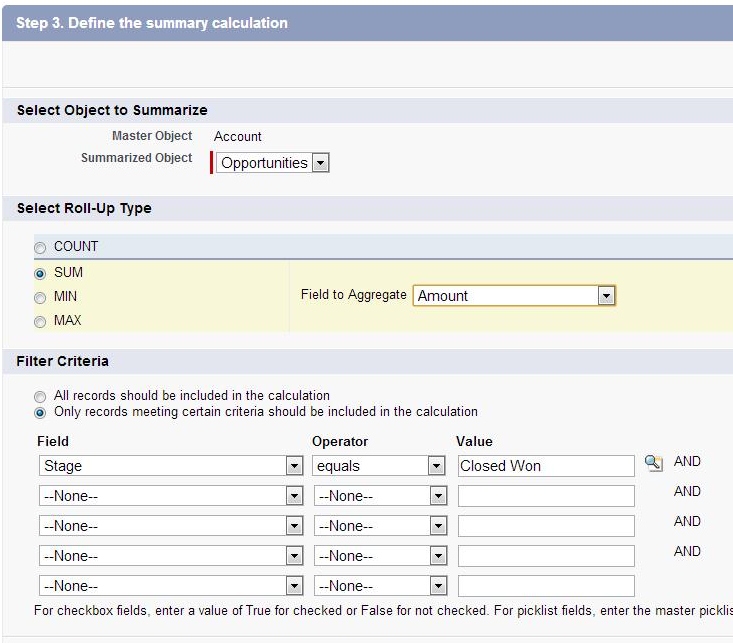
5) From the "Select Object to Summarize" picklist, select "Opportunities".

Under "Select Roll-Up Type", choose "SUM", and from the "Field to Aggregate" picklist, select "Amount."

In the "Filter Criteria" section, we will set the parameters to only include Closed Won Opportunities.  Select the "Only certain records..." radio button, which opens up the Filter Criteria picklists.  For our example, we will set a filter of "Stage + Equals + Closed Won".

6) Click "Next", "Next", and "Save" to finish creating the field.  Go to the page layout for Accounts to set the placement of the new field, and then view it on your Account records!

**************

Roll-up summaries are a great way to get better insight into your data, both at the record-level and for reporting.  As you start to leverage the power of roll-up summaries, you might find you wish you had greater flexibility than Salesforce roll-ups allow.  For instance: the ability to roll-up from activities, or between Look-up related objects.  For these cases, Rollup Helper, on the Salesforce AppExchange might be just the ticket.  Tune in next week for a Cloudy's full review of this powerful App.

If you would like more help with creating and reporting on Roll-up Summaries in your Salesforce.com org, Contact Us!

Read more Cloudy's Chalkboard tutorials:
Creating Dashboards
Grouped Bar Charts

Monday, January 28, 2013

Salesforce.com for Nonprofits - The sky is the limit!

Last week Cloudy explained a little bit about the Salesforce.com Foundation and how it supports Nonprofit and Higher Education organizations by providing ten free Salesforce.com user licenses.  

What could your organization do with those ten free licenses?

-Build deeper relationships with your partners, donors, clients, and volunteers.  Salesforce allows you to see all your related information and interactions in one place, including donation history, emails sent, phone calls logged, events attended, relationships and affiliations recorded, and any custom information you collect.  This 360 degree view of your relationships is invaluable as your team works to partner with donors and volunteers, and to better serve your clients!

-Manage your donation and grant cycle, tracking your “asks,” pledged money, and received donations, with a full view of your data relating to each donor.  Standardize the donation process, see which campaigns and events are most effective, and analyze your donation pipeline with custom reports and graphs.  Automate some of your most common tasks, such as Thank You emails and receipts.

-Integrate your email, Quickbooks, event management, or other systems, and eliminate double-data-entry once and for all!

-Use Chatter to tap into the knowledge of your entire organization.  See what your teammates are working on as they add comments to records you are following.  Get a real-time feed of updates on the items you care about send right to your phone, using the Chatter Mobile app.

-Create reports and charts that give everyone at your organization the information they need to make educated decisions.  Your charts and reports will update automatically as data flows into place; you don’t have to keep creating them!  Executives, board members, program staff, and even volunteers can each see just the information they need.

-Check out the Salesforce AppExchange and click “Nonprofits” under “Industry Solutions” to see some of the Apps that have been designed specially for you.  A Salesforce App is simply a way of adding features and functions to your Salesforce.com; many great Apps are free, and many more offer significant discounts to Non Profits.


Read Cloudy's previous post for a little more about Salesforce.com and how it relates to nonprofits.

Here are Cloudy's reviews of a some salesforce apps that are being used by a few nonprofits he knows:
Conga Composer
FormAssemby

For an hour of free consulting for your nonprofit, contact us!

Monday, January 21, 2013

The Power of the Cloud: Within Reach for Nonprofits!


If you work at a nonprofit organization, you know all about doing more with less. When the economy is down, you don’t have the luxury of scaling back for a while, because that is when your mission in your community becomes most critical!  

Salesforce.com is the industry leader in cloud based enterprise information and relationship management systems, known as CRMs. It is used by more than 100,000 businesses worldwide to drive many types of business processes.


You might be wondering what a nonprofit organization needs with a tool that sounds like it is all about “sales”.  The truth is that the name is a little misleading, and even in the for-profit sector, salesforce.com is an extremely flexible, multi-purpose CRM: it is used to manage not only sales, but marketing, customers service, and the list goes on.  For nonprofits, salesforce.com has developed the “Nonprofit Starter Pack,” which is a free package that gets you started with functionality that suits the nonprofit world.  With a few additional Apps and customizations, you could soon be managing many of the facets of your organization in one place!

The power of a tool like Salesforce.com is undeniable, but without the Salesforce.com Foundation, it would be out of reach for most nonprofits. Founded in the year 2000, the Foundation is committed to supporting organizations that “make the world a better place.” To that end, the Salesforce.com Foundation donates ten free user licenses to nonprofit and Higher Education organizations.  

At this time, more than 16,000 such organizations are using these free licenses to achieve their mission.  Some that you have heard of are the American Red Cross, Goodwill, and Teach for America.

It is safe to assume that Non Profits in your area are using Salesforce.com to drive their processes.  There might even be a local User Group that you could attend to learn more about how your peers in the Non Profit sector are leveraging the power of the Cloud.  If you are in the Twin Cities area, contact Cloudy at Redpath and he can tell you when the next local User Group is meeting!  If you are in other areas of the country, Cloudy might be able to guide you to your local resources.

Next, Cloudy explains more about what your organization could do with ten free Salesforce.com licenses.

(Or, check out Paul’s blog on this topic HERE.)


Monday, December 31, 2012

Clean ALL the Data!!! Part II

When it comes to defeating dirty data in Salesforce.com, the best offense is a good defense: start by giving your records, layouts, and fields a major tune-up.  

1) Eliminate all the unneeded fields cluttering your records.  

2) When possible, use pick lists instead of free-entry fields to reduce the impact of typos.  

3) Establish naming conventions and standards for record-completeness and make sure your users understand them.

4) Go over your page layouts and check the tab-order on your records to ensure that the settings are optimized for efficient data-entry.

5) Make the most important fields “required” on the page layout to ensure complete data entry.

6) Implement some helpful validation rules on fields that tend to accumulate errors to help your users check themselves.  

Talk to your users to make sure that the new required fields and validation rules are helpful to them: a heavy-handed application of these rules can be annoying and hurt user adoption, but when used judiciously, they are good for all!  Make sure that users understand how to search for dupes BEFORE entering new information in the system.


Once you have established these standards for clean data entry, apply them to all your data sources, whether lists, syncs, imports, or web-to-lead sources.  If you have not already, consider installing DupeCatcher in your org.


Having taken these steps to prevent dirty data, you may now turn your attention to cleaning up an existing mess. Here are two of Cloudy's favorite clean-up tools:


DemandTools: This is the go-to app for administrators looking to clean up their org. According to the provider, "DemandTools contains modules for data deduplication, normalization, standardization, comparison, verification, import, export, mass delete to name a few." It offers a free trial, free subscriptions to non-profits, and significantly reduced rates for small to medium businesses.


Data Quality Analysis Dashboards: This FREE app provides a set of dashboards that give you a quick and easy view of data quality in your org, especially as it relates to record completeness. You can quickly see which types of records in your org are most in need of remedial attention, which fields are most often being ignored, and how individual users rank in terms of data entry performance. The app offers great out-of-the-box functionality, and can easily be customized to show you what you really need to see.


If you would like help with dirty data prevention, remediation, and user training, Contact Us!


Click Here to read Clean ALL the Data!!! Part I:  Cloudy's report on how dirty data hurts your business.


Cloudy Cumulus is part of Redpath Consulting Group, based in Minneapolis, MN (c) 2012